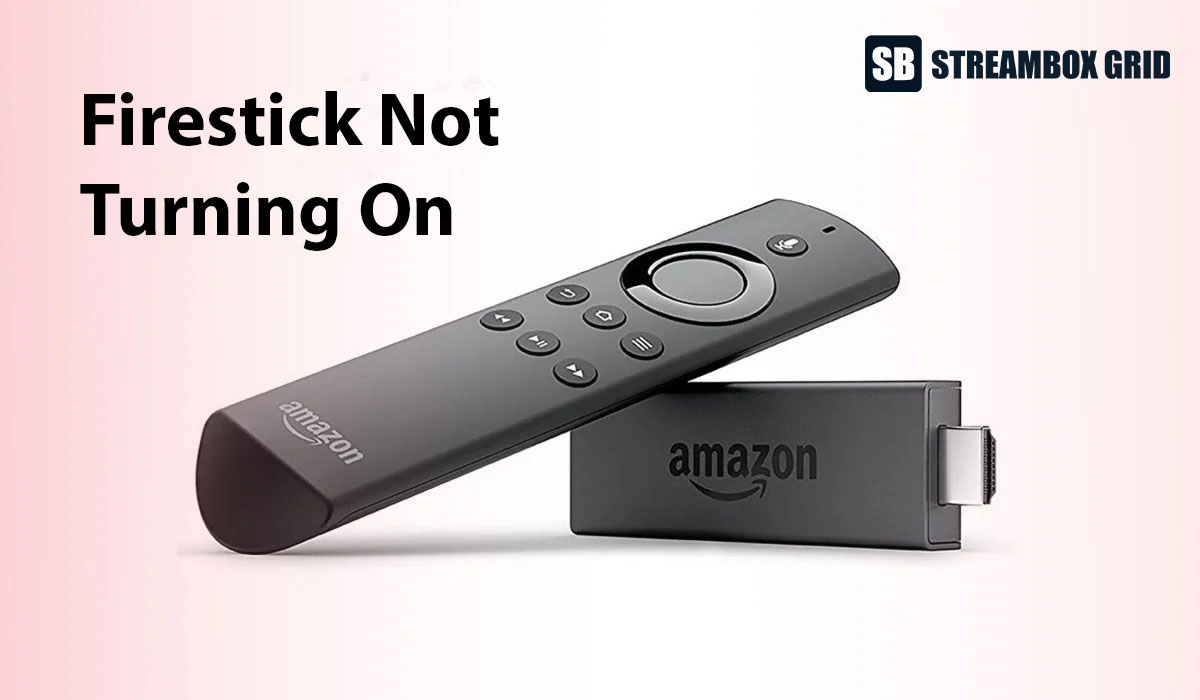
If your Firestick is not turning on, start with the easiest fix: put new batteries in your remote and press any button. Fire Sticks rest in a sleep mode, so they often stay dark until the remote wakes them up. If that doesn't work, unplug the Fire Stick from the wall, wait about 30 seconds, and plug it back in. Then check the small HDMI extender and your TV's input. Still frozen? Hold Select + Play/Pause together for 5 to 15 seconds to force a restart.
I've used both the Fire Stick HD and the Fire Stick 4K Plus, and I've run into almost every one of these problems myself. Below, I'll walk you through each fix in the order I'd try them, with the real situations where each one saved me (or a friend).
Why Won't My Fire Stick Turn On?
In my experience, a Fire Stick that "won't turn on" is usually not broken at all. Most of the time, something around it is the real problem. Here are the most common causes I've seen:
A dead remote. The Fire Stick is asleep and waiting for a button press, but the remote has no power to wake it up.
Sleep mode. Plugging it in doesn't always wake it. You often need to press a button on the remote first.
A frozen system. The Fire Stick is on but stuck, so it ignores the remote.
A faulty HDMI extender or connection. The Fire Stick is working, but the picture never reaches your TV.
Weak power. A TV's USB port often can't supply enough power. I always plug mine into the wall with the original adapter.
Overheating. A Fire Stick squeezed behind a hot TV can freeze, restart on its own, or shut down.
The good news is that you can check almost all of these in a few minutes, without any tools.
Fire Stick Not Responding? How to Fix It
Work through these fixes in order. Each one takes a minute or two, and the first one solves the problem more often than you'd think.
1. Replace the remote batteries
This is the fix that got me. I plugged my Fire Stick into the wall and into the TV, and everything looked connected, but nothing showed up. I pressed buttons on the remote and still nothing happened, so I assumed the Fire Stick was dead.
It wasn't. Fire Sticks sit in a sleep mode and wait for a button press to wake up. My remote's batteries had simply run out, so the Fire Stick never got the signal. I swapped in fresh batteries, pressed a button, and it woke up right away.
So before anything else, put new batteries in your remote and press Home or any other button.
2. Check the power source
Plug the Fire Stick into a wall outlet using the original Amazon power adapter and cable. I do this with both my Fire Stick HD and my 4K Plus. A TV's USB port often doesn't give the Fire Stick enough power, which can stop it from starting properly.
3. Switch to the right TV input
Press the Input or Source button on your TV remote and pick the HDMI port your Fire Stick is plugged into. It sounds obvious, but it's easy to miss after someone else has used the TV.
4. Unplug it and plug it back in
If the Fire Stick seems stuck, pull the power cable from the wall, wait about 30 seconds, and plug it back in. This clears most temporary glitches. It's also your fallback when the remote won't respond at all.
5. Force restart it with the remote
If the Fire Stick is on but frozen, use the remote button method in the next section.
How to Force Restart a Fire Stick
There are two ways to force restart a Fire Stick. I use the remote method first, and only unplug it when the Fire Stick is so stuck that it ignores the remote.
Method 1: The remote button combo
Point the remote at your Fire Stick.
Press and hold the Select button (the round button in the middle of the ring) and the Play/Pause button at the same time.
Keep holding both for about 5 to 15 seconds.
Let go when the screen goes black. The Fire Stick will turn off and start back up by itself.
My tip: don't count seconds too strictly. Just keep holding until the screen goes black, since that's your sign the restart has started.
Method 2: Unplug it (when the remote does nothing)
Unplug the power cable from the wall outlet or from the Fire Stick.
Wait about 30 seconds.
Plug it back in and give it a minute to boot.
Press a button on the remote to wake it up if the screen stays dark.
A force restart won't delete your apps or settings. It just clears whatever made the Fire Stick freeze.
Fire Stick On but the TV Says "No Signal"?
Sometimes the Fire Stick is working fine, but your TV shows "No Signal" or a black screen. That's usually a connection problem, not a Fire Stick problem.
This happened to me. My TV showed nothing, and I was sure the Fire Stick had died. The real culprit was the small HDMI extender that comes in the Fire Stick box. It had broken, so the picture never reached the TV. When I replaced the extender, everything worked again.
If you see "No Signal," try this:
Remove the extender and plug the Fire Stick straight into the TV's HDMI port. If it works, the extender is the problem.
Try another HDMI port on your TV, in case that port has gone bad.
Test it on another TV. I'd even take it to a friend's or neighbor's house. If it works there, the Fire Stick is fine and the issue is on your TV's side.
Fire Stick Keeps Freezing or Restarting? Check for Heat
Overheating is an easy cause to overlook, because the Fire Stick is usually hidden where you can't see it.
A friend of mine had his Fire Stick plugged in directly behind his TV, in a tight spot with no airflow. The back of a TV gets hot, and over time his Fire Stick started acting up. It would freeze in the middle of shows and restart on its own, and he thought it was failing.
My advice is simple: don't leave your Fire Stick trapped behind the TV or in a closed cabinet. If it feels hot, unplug it and let it cool down for a while. Then use the HDMI extender to move it away from the back of the TV, where it gets more air. That little extender isn't just for tight ports. It's also your best tool for keeping the Fire Stick cool.
When to Contact Amazon or Replace Your Fire Stick
If you've tried every fix above and your Fire Stick still won't turn on, it's time to stop troubleshooting. Here's what I do at that point:
Under one year old: Check your warranty. Amazon's Fire TV devices usually come with a one-year limited warranty, so contact Amazon support and ask for a replacement.
Over one year old: Contact Amazon anyway and explain the issue. They may still be able to help or suggest a fix. If they can't, buy a new Fire Stick from Amazon or a local retail store.
Before you reach out, have your order details ready and list the fixes you've already tried. It makes the support conversation much faster.
My Top Tip Before You Panic
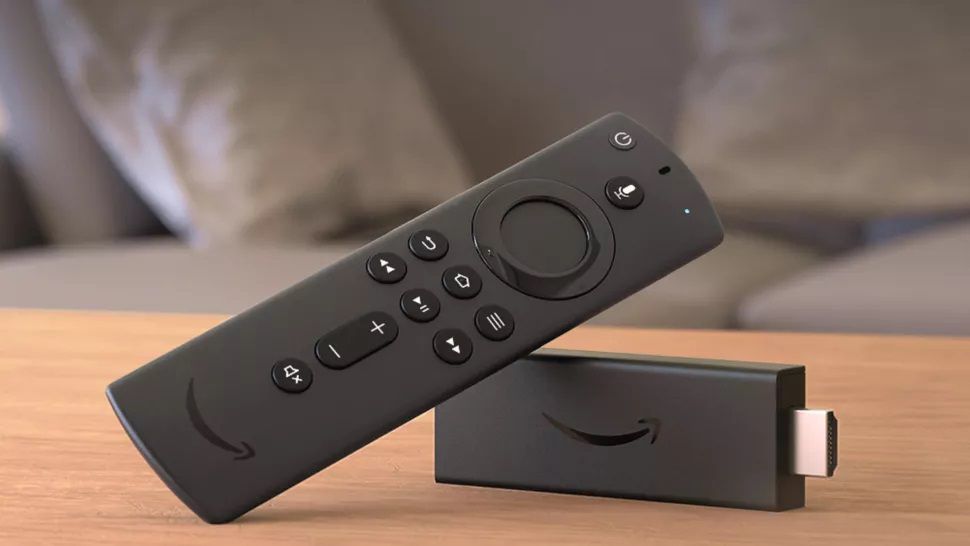
In my experience, the most common reason a Firestick won't turn on is a dead remote. So before you assume the worst, run through this quick checklist:
Put fresh batteries in the remote and press a button.
Swap out the HDMI extender, or plug the Fire Stick straight into the TV.
Try it on a friend's or neighbor's TV.
Only if all three fail would I call the Fire Stick broken. Nine times out of ten, one of these brings it back.
FAQ
Why is my Fire Stick light on but nothing shows on the TV? The Fire Stick likely has power, but the picture isn't reaching the TV. Check the TV input, remove the HDMI extender, and try a different HDMI port.
Can a dead remote make it look like the Fire Stick won't turn on? Yes. The Fire Stick often waits in sleep mode for a button press. With dead batteries, it never wakes up, which is exactly what happened to me.
Does a force restart erase my apps? No. Holding Select + Play/Pause or unplugging the Fire Stick only restarts it. Your apps and settings stay in place.
Can I power my Fire Stick from the TV's USB port? I don't recommend it. A TV's USB port often doesn't supply enough power. Use the original adapter plugged into a wall outlet.

Written by
Dana Reyes
Dana has spent six years untangling streaming hardware, from set-top boxes to the router behind them. She writes the setup guides she wishes she had.
Discussion (0)
Loading comments…