Quick answer: The iPhone and Android VPN usage warning is a standard notice, not proof that you're being spied on. iPhones say "All network activity on this iPhone may be filtered or monitored when using VPN." Android says the app "wants to set up a VPN connection that allows it to monitor network traffic." Both appear whenever you install a VPN app. They don't mean Apple, Google, or your employer is watching you. They remind you that the VPN app itself now carries all your traffic, so only use one you trust. Your company can, however, often tell that you're using a VPN on its Wi-Fi.
I've been on both sides of this warning: once panicking at my desk, and once calming down a friend who was panicking next to me. I'm a game developer with more than five years of experience, and most of my work is servers, backends, ports, and multiplayer networking. Here's what the warning really means, and what your company can and can't see.
The iPhone VPN warning: my first encounter
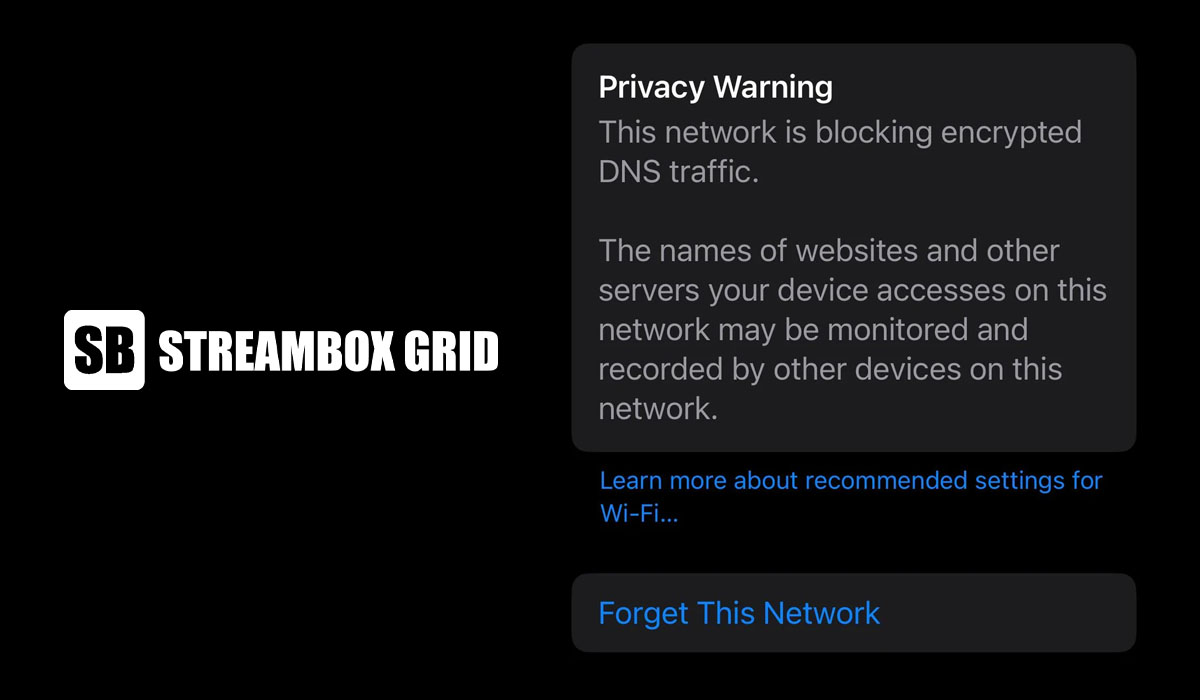
The first time I saw this warning, I was sitting in my office with my personal iPhone 14, connected to the company Wi-Fi. I use a VPN almost everywhere because I like keeping my traffic private.
When I set the VPN up, iOS showed a pop-up asking whether the app could "Add VPN Configurations," with a line underneath saying that all network activity on this iPhone may be filtered or monitored when using VPN.
My honest first reaction: "My company is spying on me." I was on their network, so I assumed IT could suddenly see every website and app I opened. I panicked.
Later I did the research. It turned out this is a normal message that iOS shows whenever you add any VPN configuration, at home, at a café, or at the office. It had nothing to do with my employer. It was scary at first, but it's simply Apple being transparent about how VPNs work.
You'll find the active VPN under Settings > General > VPN & Device Management. While it's connected, a small "VPN" badge also appears in the status bar.
The Android VPN warning: same panic, different phone
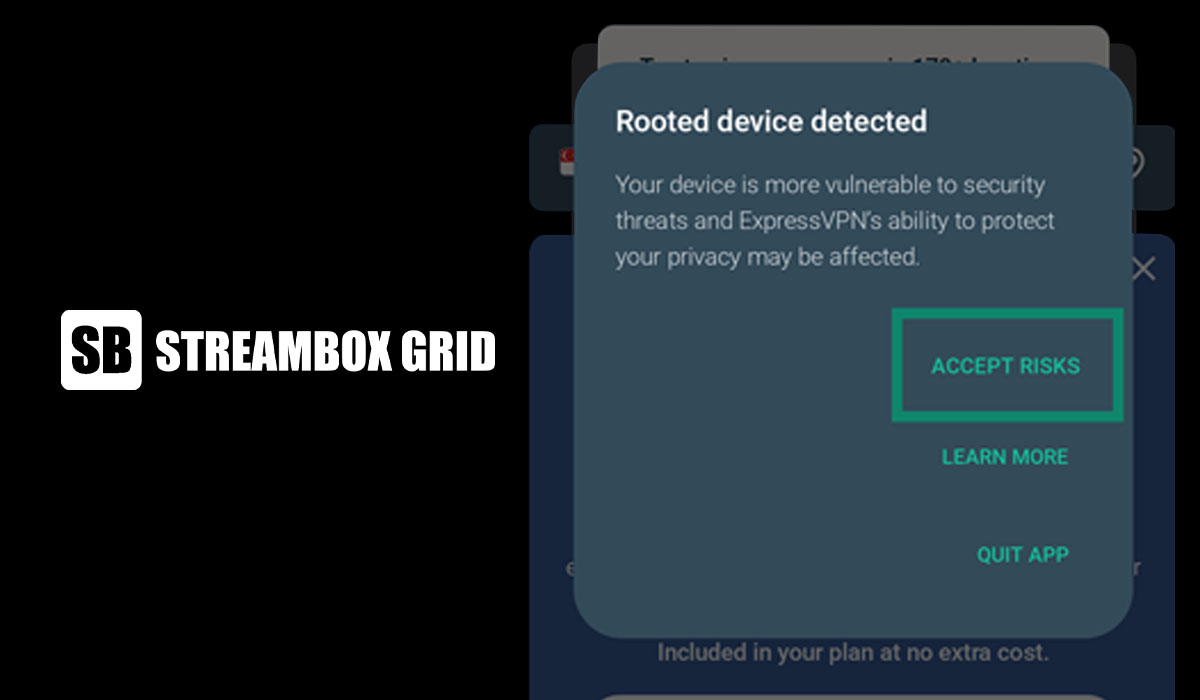
Android has its own version. When a VPN app connects for the first time, Android shows a "Connection request" saying the app wants to set up a VPN connection that allows it to monitor network traffic, and to only accept if you trust the source. Once connected, a small key icon appears in the status bar.
I watched this play out on a weekend trip with a friend. We were on public Wi-Fi, so he turned on a VPN, which is exactly the right move. The warning popped up and he froze: "Is this Wi-Fi being monitored by a hacker?"
By then I already knew the answer. I told him about my own iPhone scare at the office and explained that Android shows this notice for every VPN app. It's about the app he was installing, not the network he was on. He relaxed in about ten seconds.
The lesson from both stories: the warning sounds alarming because it's describing a real power. It isn't describing a real attack.
Isn't the whole point of a VPN to not be monitored?
Yes, but a VPN doesn't make you invisible. It moves the trust from one party to another.
Without a VPN, the Wi-Fi owner (your office, a hotel, a café) and your internet provider can see which sites you connect to. With a VPN, your phone sends everything through an encrypted tunnel to the VPN company's server first. The Wi-Fi owner now sees only scrambled traffic going to one server.
But the VPN provider sits at the other end of that tunnel. In principle, it can see what the network used to see. That's the "monitoring" the warning refers to.
From my backend work, I think of it like routing a game's traffic through a relay server: the relay hides players from each other, but whoever runs the relay sees every packet. So a VPN protects you from the network, not from the VPN company. Pick a provider with a clear no-logs policy and, ideally, an independent audit. Be wary of free VPNs, which often pay their bills with your data.
Why does Apple insist it has rights to monitor activity?
It doesn't. This is the most common misreading of the warning, and it was mine too.
The message isn't Apple claiming any right. It's Apple warning you about the app you're about to approve. A VPN configuration lets that app route, filter, and potentially inspect all of your phone's traffic. That's a lot of power, so iOS asks for your permission and tells you plainly what you're granting.
Google does the same on Android, for the same reason. Think of it like the prompt you get before an app can use your camera or location: the phone isn't watching you, it's asking whether you trust the app to.
How does my company know I'm using a VPN on my personal phone?
Mine found out. Not on day one, but after I'd used the VPN on the office Wi-Fi many times. Our company rules don't allow VPNs on the network, so IT called me in and asked whether I was using one on my personal phone. I was a little confused, said yes, and they asked me to stop while connected to company Wi-Fi.
They didn't need access to my phone. The network gave it away. Here's how that usually works:
Your device is visible on the network. Every phone that joins the Wi-Fi shows up on the router or firewall, usually with a device name and hardware address.
Your traffic pattern looks unusual. A normal phone talks to Google, Instagram, WhatsApp, and dozens of other services. A phone on a VPN sends almost everything to one fixed IP address: the VPN server.
VPN servers are easy to recognize. Many firewalls keep lists of known VPN provider IP addresses and flag connections to them.
VPN protocols have fingerprints. Common protocols use well-known ports, such as 1194 for OpenVPN and 51820 for WireGuard, and their traffic has a recognizable shape that business firewalls are built to detect.
As someone who sets up servers and ports for multiplayer games, none of this surprised me in hindsight. If I can see which clients connect to my game server, a company firewall can certainly see which phones connect to a VPN server.
Can my company see that I'm using a VPN on their Wi-Fi?
Usually, yes. They can see that you're using a VPN. What they can't see is what you're doing inside it.
On company Wi-Fi, IT can usually see | Without a VPN | With a VPN |
|---|---|---|
That your phone is connected | Yes | Yes |
How much data you use, and when | Yes | Yes |
That you're using a VPN | No | Usually yes |
Which websites and apps you connect to | Yes (domain names) | No, only the VPN server |
Your messages, passwords, page contents | No, on HTTPS sites | No |
So the VPN worked as promised: my IT team never knew which sites I visited. But it made my phone stand out, and on a network with a no-VPN rule, standing out was the problem.
Once you leave the office Wi-Fi and switch to mobile data, the company network sees nothing at all, VPN or not. The exception is a phone that's enrolled in your company's management, covered next.
When a warning does mean your company has more access
The standard VPN pop-up is harmless. A few other messages are worth a closer look, because they point to your employer, not to a VPN app.
A company-issued phone. If your employer owns the phone, it's often fully managed. IT can then set up VPNs, restrict apps, and on iPhone you'll see a note in Settings that the device is supervised and managed by your organization.
A work profile or management app on your personal phone. Apps such as Microsoft Intune or a work profile on Android let IT manage work apps and data. On personal phones set up this way, they're generally designed to keep your personal browsing out of the company's view.
An installed security certificate. Some companies ask you to install a certificate so their firewall can inspect encrypted traffic. Android may then show "Network may be monitored." On iPhone, check Settings > General > About > Certificate Trust Settings. This one can expose more of your traffic, so ask IT why it's needed.
To check your phone, look under Settings > General > VPN & Device Management on iPhone, or Settings > Security (or Accounts) on Android, for anything you don't recognize. In my case, IT spotted my VPN from the network traffic alone.
My advice if you see this warning today
After my talk with IT, I stopped using my VPN at the office. Switching to mobile data wasn't an option for me, because we're expected to use the company Wi-Fi at work. So now the VPN goes off when I walk in and back on when I leave, running over my mobile data.
Here's what I'd tell anyone who sees this warning:
Don't panic. On a personal phone, the standard VPN pop-up is a normal disclosure, not a sign that you're being watched.
Trust your VPN provider, or don't install it. The warning is really about them, so choose a reputable, audited service.
Ask IT before they ask you. If you want a VPN at work, ask whether it's allowed on the company network. It's much better than getting called in, the way I was, and looking suspicious.
Know when your company can see more. Off company Wi-Fi, your employer's network sees nothing. A company phone, work profile, or installed certificate is a different story, so check your settings.
The warning sounds scary because it's honest. Once you know what it's honest about, it's just one more pop-up to tap through.
FAQ
Does the iPhone VPN warning mean I've been hacked? No. It appears every time you add a VPN configuration. It's a permission notice, not an alert about an attack.
Can my employer see my browsing history if I use a VPN on their Wi-Fi? No. They can usually tell you're connected to a VPN, but not which sites you visit through it.
Can my company see my VPN when I'm on mobile data? Not through its network. Only management software on the phone itself, such as a work profile or company device setup, could give them more information.
How do I make the VPN warning go away? Approve or deny the request once. To remove the VPN completely, delete its profile in iPhone Settings or turn off the VPN app on Android.
Is it safe to tap "Allow"? Yes, if you trust the VPN provider. If you don't recognize the app asking for VPN access, tap "Don't Allow" and uninstall it.

Written by
Dana Reyes
Dana has spent six years untangling streaming hardware, from set-top boxes to the router behind them. She writes the setup guides she wishes she had.
Discussion (0)
Loading comments…