Yes, you can still use IPTV apps for Firestick in 2026, but only on models that run Fire OS: the Fire TV Stick 4K, 4K Max, 4K Plus, the older Fire TV Stick HD, and the Fire TV Cube. The Fire TV Stick 4K Select and the 2026 Fire TV Stick HD run Amazon's new Vega OS, which blocks sideloaded apps completely.
If your app won't install on a supported stick, the usual causes are full storage, the "Install unknown apps" setting being off, or your internet provider blocking the download. My top three picks are TiviMate, IPTV Smarters Pro, and Hot Player. Details, fixes, and all six apps are below.
Why You Can Trust This Guide
I've used IPTV on Firestick for almost five years, ever since a close friend introduced me to it. In my home, a Fire TV Cube runs the living room TV and a standard Firestick runs the bedroom TV.
I'm also the person friends and family call when their IPTV app won't install or won't load. Every tip and fix below comes from something I've done myself or solved for someone I know.
Can I Still Use IPTV on My Firestick?
Yes, as long as your device runs Fire OS. Amazon has started shipping some new sticks with Vega OS, a locked-down Linux system that cannot install apps from outside the Amazon Appstore. Amazon's developer page now says every future Fire TV Stick will run Vega (AFTVnews).
Device | Operating system | Can install IPTV apps? |
|---|---|---|
Fire TV Stick 4K Max (1st and 2nd gen) | Fire OS | Yes |
Fire TV Stick 4K Plus | Fire OS | Yes |
Fire TV Stick 4K (older, no "Select") | Fire OS | Yes |
Fire TV Stick HD (older model) | Fire OS | Yes |
Fire TV Cube | Fire OS | Yes |
Fire TV smart TVs (Hisense, TCL, Insignia, etc.) | Fire OS | Yes, for now |
Fire TV Stick 4K Select (2025) | Vega OS | No |
Fire TV Stick HD (2026) | Vega OS | No |
Watch out for the Fire TV Stick HD name. Amazon sells an old and a new model under the same name. The new Vega version has Wi-Fi 6, rounded corners, and "Fire TV" printed on the stick.
Already own a Fire OS stick? You're safe. Existing Fire OS devices are not being updated to Vega OS, so your apps will keep working.
Best 6 IPTV Apps for Firestick (Tested Over 5 Years)
These are the apps I actually use or set up for family, ranked by how well they work on a Firestick. All of them are players only: they include no channels, so you still need a subscription from an IPTV provider.
App | Best for | How you log in | Cost |
|---|---|---|---|
TiviMate | Best overall experience | Xtream Codes or M3U link | Free basic; Premium about $9.99/yr or $34 lifetime |
IPTV Smarters Pro | Free alternative to TiviMate | Xtream Codes or M3U link | Free; premium optional |
Hot Player | Older or less techy users | MAC address (provider activates) | About $7–8/yr, free with some providers |
IBO Player Pro | Very large playlists | MAC address + device key | Paid activation after trial |
Stello TV Pro | Stello TV subscribers | Provider account | Free with a Stello TV subscription |
IPTV X | Apple TV, iPhone, and Mac users | Xtream Codes or M3U link | Paid |
App prices change often, so check each developer's official site before you pay.
1. TiviMate: Best Overall
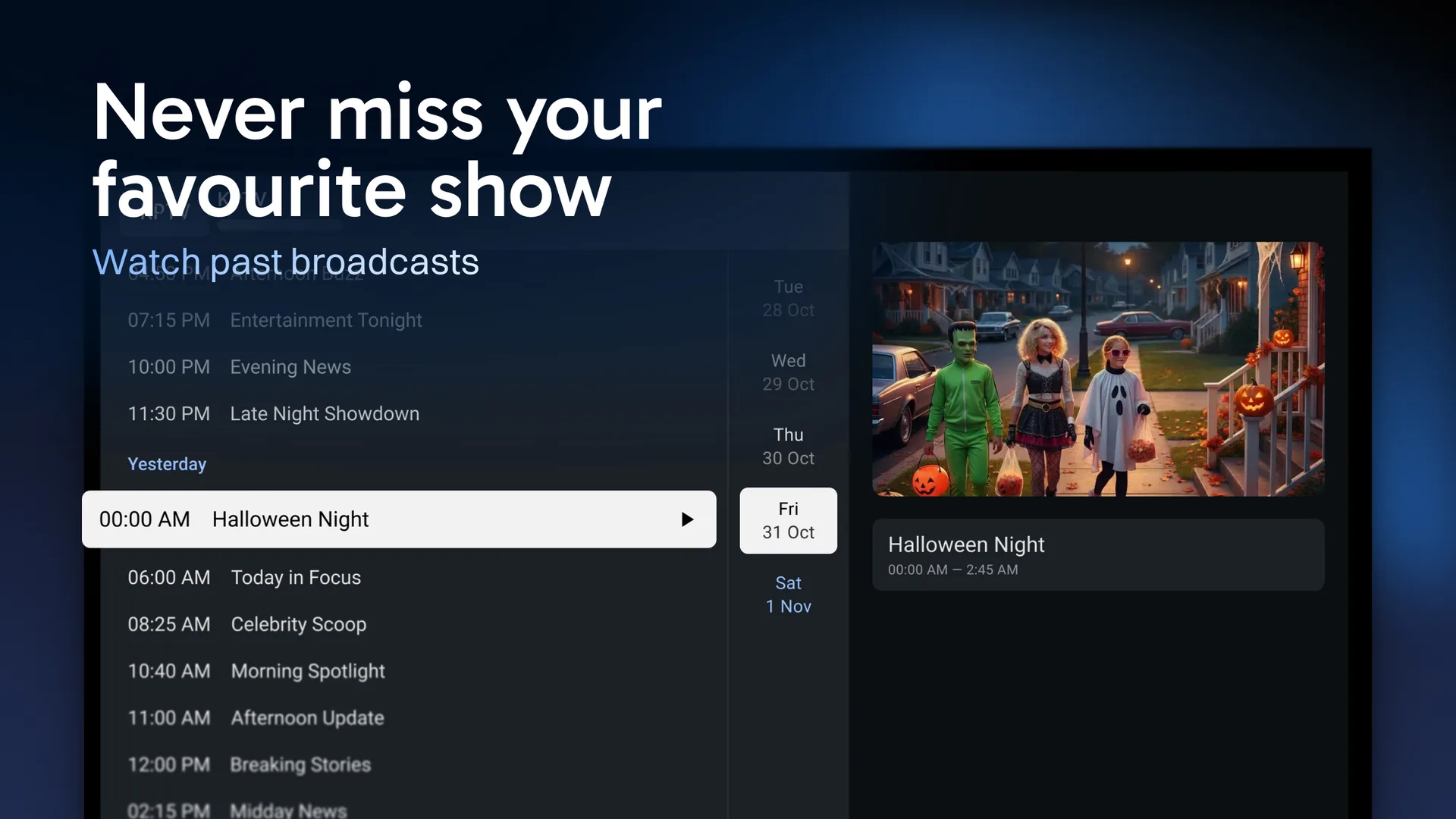
TiviMate is the app I recommend first. It's easy to use, runs on every Fire OS stick, and installs through the Downloader app.
My favorite features are the TV guide (EPG) and the resume feature, which remembers the exact episode and minute where you stopped a movie or series.
The free version lets you explore the live channels, but you need Premium for the full experience. Premium costs about $9.99 a year or about $34 for lifetime, covers up to 5 devices, and comes with a 7-day trial (source). For the quality you get, that's a bargain.
2. IPTV Smarters Pro: Best Free Alternative
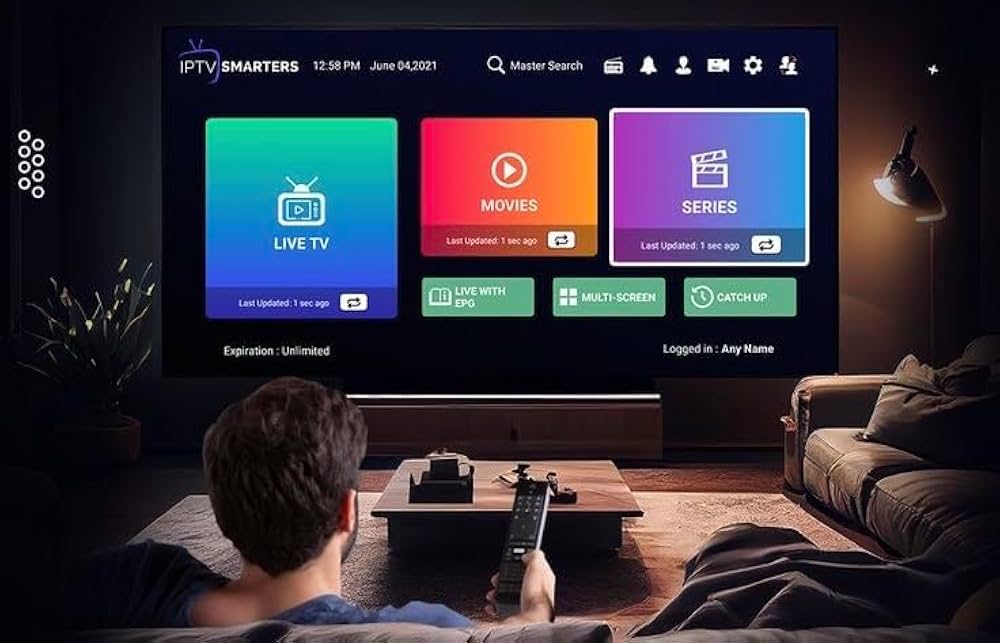
IPTV Smarters Pro has almost every feature TiviMate has, with a clean interface. You can log in with Xtream Codes or by entering your M3U link.
It supports multiple user profiles, favorites, custom playlists, resume points, and picks up your last session. The free version works well, and premium unlocks the best experience.
3. Hot Player: Easiest for Beginners and Older Users
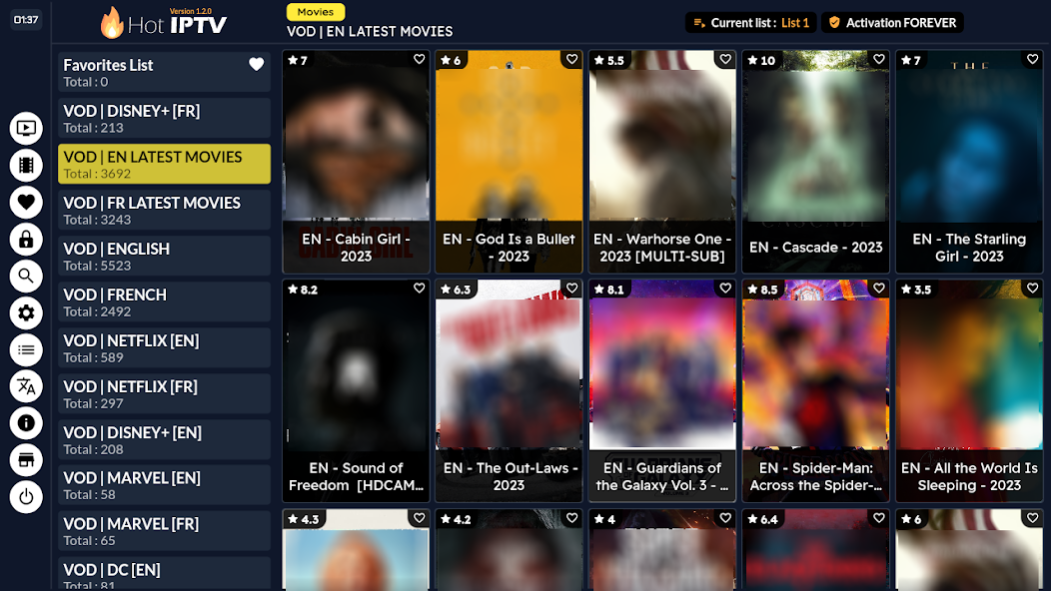
Hot Player's biggest advantage is activation. Open the app, and it shows a MAC address. Send that to your provider, and they activate your line remotely, with no username, password, or server URL to type with a TV remote.
The layout is simple, with few buttons and little text, which makes it my pick for parents and grandparents. Quality is excellent. It costs about $7–8 a year, and some providers, like Stello TV, include it free for their customers.
4. IBO Player Pro: Fastest With Big Playlists
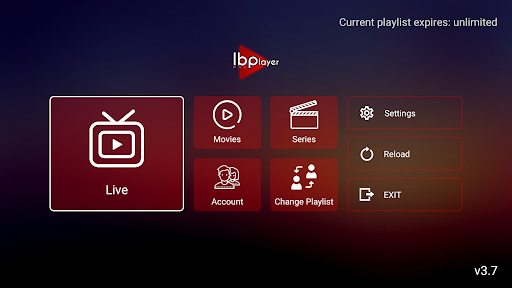
IBO Player Pro activates the same way as Hot Player, using a MAC address and device key. Your provider uploads the playlist for you, which saves around 15 minutes of typing with a remote.
It's a light app that loads huge playlists quickly, and I haven't had buffering with it. My only complaint came when I used it on a MacBook: full screen shrank to 1080p with black edges. On a TV, it's been great.
5. StelloTV Pro: Free Premium Features for Subscribers
Stello TV Pro feels very close to TiviMate and includes the premium-style features for free. The catch is that it only works with a Stello TV subscription.
6. IPTVX: Best for Apple Devices
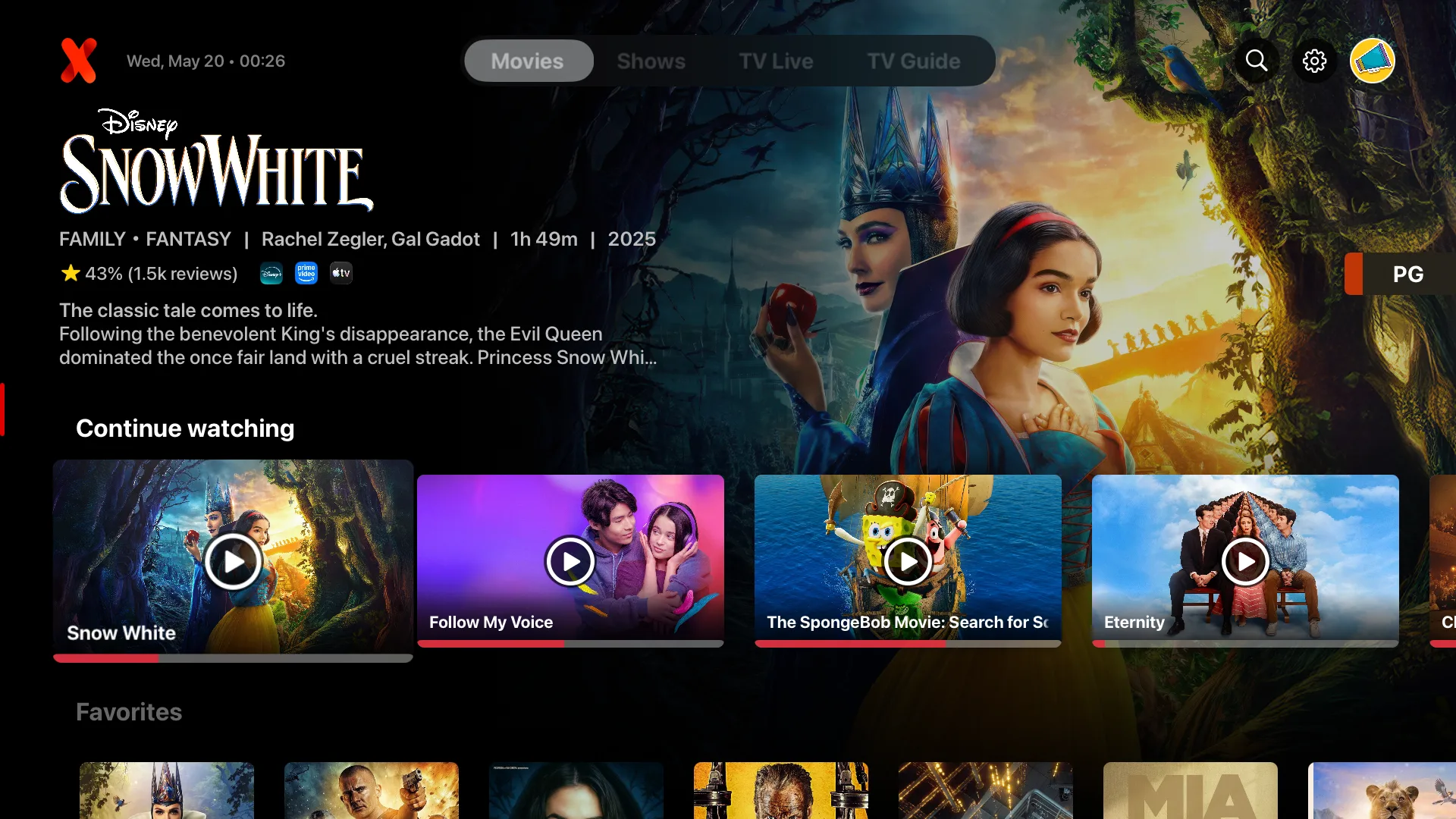
IPTV X is not available on Firestick. It's on this list because many readers also own an Apple TV, iPhone, or Mac, and it's the most polished player I've used. The interface feels like Netflix, simple and user-friendly. It's a paid app, but it's worth the money.
How to Install IPTV Apps on Firestick
Apps like TiviMate and IPTV Smarters Pro aren't in the Amazon Appstore, so you install them with the free Downloader app. First, search for "Downloader" in the Appstore and install it. Then follow these steps.
Step 1: Turn on Developer Options
Go to Settings → My Fire TV → About.
Click the first option (your device name) 7 to 8 times in a row until you see "Developer options activated."
Go back to My Fire TV and scroll down to Developer Options.
Turn on ADB Debugging.
Open Install unknown apps, select Downloader, and turn it on.
Step 2: Download your IPTV app
Search Google for your app's Downloader code, for example "TiviMate Downloader code." Use the developer's official site or a trusted Fire TV news site (more on this in the mistakes section).
Open Downloader, type the code, and click Go.
When the download finishes, click Install.
The app now appears in your app list.
My setup routine for every new Firestick
When I set up a stick for a friend or cousin, I always do it in this order:
Factory reset the stick after the first setup screens.
Connect to Wi-Fi and install every available Fire TV update.
Turn on Developer Options and Install unknown apps (Step 1).
Install one IPTV app, the one the provider recommends (Step 2).
The reset is optional on a brand-new stick, but it gives me a clean start. Updating first avoids install errors caused by outdated software.
Why Won't My IPTV App Install on Firestick?
In my experience, full storage and internet provider blocks cause most failed installs. Use this table to match your symptom to a fix.
What you see | Likely cause | Fix |
|---|---|---|
"There was a problem parsing the package" | Storage full (most common for me) | Uninstall apps you don't use |
Same parsing error, storage is fine | Download interrupted, or app too new for your Fire OS | Delete the file and re-download, or install an older app version |
Downloader code opens an error page | Internet provider blocking the site | Connect a VPN and try again |
No Developer Options menu at all | Vega OS model (4K Select or 2026 HD) | Return or exchange the stick |
Downloader can't install anything | "Install unknown apps" is off | Turn it on for Downloader |
"App installation blocked" pop-up | Amazon flagged the app for piracy | See the next section |
Case study: the parsing error
This happened to me when I was starting out, and later to a friend. The download finished, installation started, and near the end it failed with a parsing error. Both times the storage was full.
The fix: go to Settings → Applications → Manage Installed Applications, uninstall apps you don't use, then run the install again.
Case study: my cousin's internet provider
My cousin bought a new Firestick, typed the Downloader code, and got an error page every time. On my own stick, the same code downloaded the app instantly.
We called Amazon's Fire TV support, and they couldn't find the problem. We finally worked out that his internet provider's firewall was blocking the download site. We installed Surfshark VPN, connected to a server in another country, and the same code worked right away.
Is My Firestick Blocking IPTV Apps?
It depends on your model and the app. Amazon now blocks IPTV apps in two different ways.
1. Vega OS models block all sideloaded apps. On the Fire TV Stick 4K Select and the 2026 Fire TV Stick HD, there is no Developer Options menu and no way to install apps from Downloader. Vega does have a Developer Mode, but it needs an Amazon developer account and developer tools, so it isn't a real option for viewers (Tom's Guide).
2. Fire OS models block apps flagged for piracy. Amazon checks sideloaded apps against a list of known piracy apps from the Alliance for Creativity and Entertainment (Slashdot). Flagged apps show an "App installation blocked" pop-up, and Amazon offers no workaround (9to5Google).
The target is apps that stream pirated movies and sports the moment you open them. Players like TiviMate or IPTV Smarters Pro, which show only the playlist you add, can still be sideloaded. A VPN won't get around this block, because the check happens on the device itself, not on your network. That's different from my cousin's case, where the internet provider was the problem.
What to do if you bought a Vega model
There is no workaround right now. Contact Amazon and return the stick, or exchange it for a Fire OS model like the 4K Max or 4K Plus. Do it within Amazon's return window rather than waiting for a fix.
I'll update this section if Amazon changes anything.
How to Get Smooth, Buffer-Free IPTV on Firestick
Most buffering comes from weak provider servers or a throttled connection, not from the Firestick.
Keep the stick close to the router. I use Wi-Fi, not Ethernet, on both my TVs, and I place each device as close to the router as I can so the signal stays strong.
Don't chase the cheapest provider. In my experience, very cheap providers often run overloaded servers, and no app or setting fixes that.
Use a VPN if your internet provider throttles IPTV. Some providers slow down or block connections to IPTV servers. A VPN like Surfshark hides that traffic, the same trick that fixed my cousin's install problem. Test with the VPN on and off: if the provider's servers are the issue, a VPN won't help and can add a little delay.
Fire TV Cube or standard Firestick? For IPTV apps, I haven't noticed a real difference between my Cube and my Firestick. The apps rely on the same functions on both. For most people, the cheaper standard stick is the smarter buy. Very large playlists may load a bit faster on stronger hardware.
Are IPTV Apps Safe and Legal?
The apps themselves are legal. TiviMate, IPTV Smarters Pro, and IBO Player Pro include no channels; they only play the playlist you add. Whether watching is legal depends on your provider: a licensed provider holds the rights to what it streams, and an unlicensed one doesn't. Unlicensed services also carry more risk of malware and scams.
How I check an app: I look for it on Google Play or the Apple App Store first. Both stores screen apps before listing them, so an app that's there is a much safer bet. An app you can only get from a random link is a red flag for me. A store listing isn't a full guarantee, but it's a strong first filter.
How I check a provider: I ask for their Trustpilot profile, or I search their website on Trustpilot myself. No profile and no reviews means I stay away. Reviews can be padded, so look for detailed reviews spread over months, and be wary of a sudden burst of five-star posts.
3 Beginner Mistakes to Avoid
1. Buying the wrong Firestick. The 4K Select and the 2026 Fire TV Stick HD can't install IPTV apps at all. Check the model before you buy.
2. Installing a fake copy of an app. Downloader has no way to tell you whether a code points to the real app. Type the wrong code and you might pay for a copy that never gets updates. It stops working eventually, and you pay again for the real one. Get codes from the developer's official website or a well-known Fire TV news site, not from random videos or comments.
3. Loading the same playlist into several apps. I often see TiviMate, IPTV Smarters Pro, and IBO Player Pro all on one stick, connected to the same playlist. I avoid this at all costs. Many providers limit how many connections one subscription can use, so this can trigger "max connections" errors or get your line suspended. It also eats the stick's limited storage.
My Final Recommendation
If you follow just one piece of advice: buy an older Fire OS stick, not one of the new models, and use the app your provider recommends.
Device: A standard Fire TV Stick 4K or 4K Max is enough if you already have a good TV. Skip the Fire TV Cube unless you already own one.
App: Ask your provider first. If they have their own app, like Stello TV does, use it. If they recommend another app, Google it to confirm it's legitimate. If you're unsure, go with TiviMate or IPTV Smarters Pro and ask your provider for Xtream Codes login details.
Stuck on something? Leave a comment with your Firestick model and the error you see, and I'll reply with the fix that I think will work for you. And if you've solved a problem I didn't cover, share it in the comments too, so it can help other readers.

Written by
Dana Reyes
Dana has spent six years untangling streaming hardware, from set-top boxes to the router behind them. She writes the setup guides she wishes she had.
Discussion (0)
Loading comments…